How to test that saved edits survive a page refresh
Test saved changes with a manual CRUD checklist and Playwright template: reopen the same record, refresh it, and check an untouched control.
- Browser testing
- CRUD
- Playwright
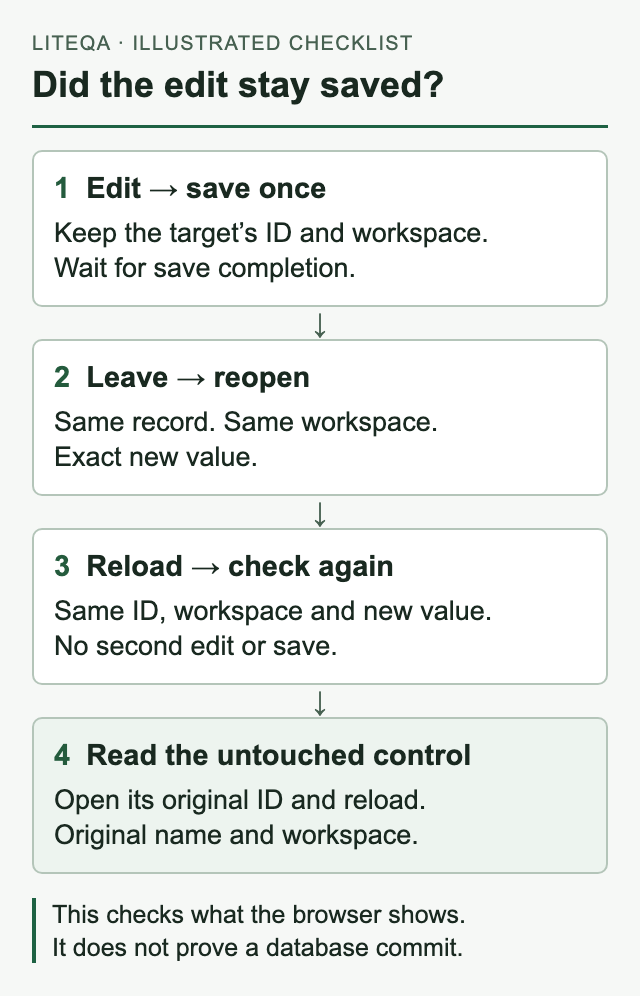
To test whether an edit stays saved, save once, leave the page, reopen the same record and refresh it. Check the exact new value, the record identity and its workspace. Then open an untouched control record and confirm it stayed unchanged.
That is a useful regression check for a small SaaS team: it follows the edit through to what a returning user sees. You can run it manually before a release, then automate the same assertions for a frequently changed form.
Why a success toast does not prove an edit stayed saved
A toast tells you what the interface reported. A changed heading tells you what the current page displays. Neither observation, alone, establishes that the edited record will load correctly later.
An application can display a change before its asynchronous save finishes. React's optimistic-state documentation describes this technique. Your app may use a different implementation, but the testing question stays the same: what happens when you read the record again?
Define the outcome before clicking:
After saving the new name, leaving the detail page, reopening the original record and reloading it, that record must show the exact new name in the original workspace. The separate control record must retain its original name.
This distinguishes feedback from a usable saved result. It also catches a different class of mistake: saving the right value to the wrong record.
Set up two records you can safely change
Our worked example uses a fictional workspace, Atlas Studio, with two existing projects:
| Record | Before the test | Expected after the test |
|---|---|---|
| Target project | Autumn Launch | Autumn Launch — October Release |
| Control project | Customer Research | Customer Research |
Use a disposable account and test-owned workspace. Avoid customer records, notifications, or integrations that could turn a harmless rename into an external action.
Make the fixture unique for each run. For example, create a workspace named Atlas Studio — QA 20261002-01 containing these two projects. Record its stable workspace identifier and each project's identifier or detail URL. A unique workspace lets you keep the readable project names while preventing two concurrent runs from editing the same fixture. Playwright recommends independent tests with isolated state and data.
Record the target's initial name and workspace, and open the control to establish its initial name too. A control is a separate untouched record, not a second edit. Here it protects the specific invariant that renaming Autumn Launch must not rename Customer Research; it does not prove every other field or record is unchanged.
Tip
A name is the value being edited, so it is a poor sole identifier. Preserve a stable record ID or URL before the edit and check it again afterward.
Run the manual edit, reopen and refresh check
- Open the target. Enter Atlas Studio, open Autumn Launch, and note its record ID or detail URL. Confirm the workspace and original name. If several records match, resolve the ambiguity before editing.
- Change only the name. Enter
Autumn Launch — October Releaseand save once. Wait for the app's documented save-completion state. Record the feedback, but continue the test. - Leave the detail page. Navigate to Projects or another ordinary page. This exercises the route a returning user takes rather than leaving the form open.
- Reopen the original record. Use its stable ID or detail URL, or verify that the list entry links to that same identity. Confirm the exact new name and Atlas Studio workspace.
- Reload that detail page. Use the browser's normal refresh. After loading settles, confirm the record identity, workspace and exact new name again. Do not type the name again or submit another save.
- Open the control. Open the original Customer Research record by its recorded identity. Reload its detail page and confirm its name and workspace remain unchanged.
If the app has autosave, define completion using its actual contract, such as a saved indicator after the request finishes. Testing refresh during an in-flight save is a separate race-condition scenario. Keep it separate so a failure has a clear interpretation.
The identity checks matter even when the name looks correct. Searching globally for the new name can find a project in another workspace. Selecting the first matching row can conceal a duplicate. Creating a new project with the desired name can make a text assertion pass while the original record remains broken.
Report pass, fail or unverified
Use a result that matches the evidence:
| Result | What it means for this check |
|---|---|
| Pass | The original target has the expected name and workspace after reopen and reload; the original control retains its name and workspace. |
| Fail | An observed required value or identity contradicts the expectation: old name returns, wrong workspace loads, a replacement record appears, or the control changes. |
| Unverified | You cannot establish the outcome: login expires, loading never finishes, the record identity is ambiguous, or reload/control evidence is missing. |
An automation timeout should fail the test job, but your investigation can still classify the business outcome as unverified. A broken selector is not evidence that the application lost data. Use the browser smoke test failure triage guide to separate an app defect from invalid login, test data or a check problem.
Keep a compact record: fixture identifiers, original and expected values, the last completed checkpoint, and the actual value at the first contradiction. Capture screenshots only when they exist and help explain the result. Keep credentials and private customer data out of shared evidence.
If Save appears to time out, inspect the original record before retrying. Repeating a mutation without knowing its outcome can hide the first failure or introduce another one.
Automate the same assertions with Playwright
Playwright provides role and label locators, a page reload method, and retrying assertions. Use these to wait for visible outcomes rather than inserting a fixed sleep.
The following is an adaptation template. We have not executed it; it is not an executable test for the lab or a drop-in test for your app. It assumes an authenticated test fixture has seeded the two projects in a unique workspace and supplies their stable URLs. Replace the field labels and test IDs with your application's contracts. The workspace test ID must identify the current record's workspace, not a global workspace menu.
import { test, expect } from '@playwright/test';

// Supplied by your authenticated, test-owned fixture:
// targetURL, controlURL, projectsURL, workspaceName

test('renamed project survives reopen and reload', async ({ page }) => {
  const renamed = 'Autumn Launch — October Release';
  const heading = page.getByRole('heading', { level: 1 });
  const workspace = page.getByTestId('record-workspace');

  await page.goto(targetURL);
  await expect(page).toHaveURL(targetURL);
  await expect(heading).toHaveText('Autumn Launch');
  await expect(workspace).toHaveText(workspaceName);

  await page.goto(controlURL);
  await expect(page).toHaveURL(controlURL);
  await expect(heading).toHaveText('Customer Research');
  await expect(workspace).toHaveText(workspaceName);

  await page.goto(targetURL);
  await page.getByRole('button', { name: 'Edit', exact: true }).click();
  const name = page.getByLabel('Project name', { exact: true });
  await name.fill(renamed);
  await expect(name).toHaveValue(renamed);
  await page.getByRole('button', { name: 'Save', exact: true }).click();
  // Adapt this to the app's actual save-completion signal.
  await expect(page.getByRole('status')).toHaveText('Project saved');

  await page.goto(projectsURL);
  await page.goto(targetURL);
  await expect(page).toHaveURL(targetURL);
  await expect(heading).toHaveText(renamed);
  await expect(workspace).toHaveText(workspaceName);

  await page.reload();
  await expect(page).toHaveURL(targetURL);
  await expect(heading).toHaveText(renamed);
  await expect(workspace).toHaveText(workspaceName);

  await page.goto(controlURL);
  await page.reload();
  await expect(page).toHaveURL(controlURL);
  await expect(heading).toHaveText('Customer Research');
  await expect(workspace).toHaveText(workspaceName);
});
The fixed URLs bind the assertions to the original records. If your app changes a URL when a name changes, use a separate immutable record ID instead. To cover list navigation too, click the matching record link and assert its destination identity; direct navigation covers the saved detail route but not the list's correctness.
Keep the save request real in this end-to-end check. A mocked success response cannot demonstrate that your server stored the edit. A separate form component test can use mocks, but it answers a narrower question.
What refresh proves, and what it leaves open
Reload gives you useful evidence of the returning user's experience. It is not independent proof of a database commit. Browsers and applications can reuse stored data; MDN explains HTTP caches and reload behavior.
For stronger server-persistence coverage, add an authorized read through your app's real API or an independent backend test. Assert the same record ID, workspace ID and new name, plus the unchanged control. Understand the read path's caching before treating it as independent. Keep the browser assertions as well: a correct database value does not establish that the UI displays it correctly.
A fresh authenticated browser context can add coverage against browser-local state. It still does not, by itself, bypass every server cache or prove durability across service restarts.
A local example: a save defect and runner failures
In a controlled local lab for LiteQA browser checks, the renamed target showed the expected value after leaving, reopening and reloading it, and the original control was opened and remained unchanged. A planted save defect produced success feedback while the original name remained; the check rejected that outcome before reaching the later persistence checkpoint.
After restoring the app, two restored attempts still failed because of runner looping and reload-evidence handling. Once those runner issues were corrected, a final local run passed with the same saved test definition and inputs. The earlier failures remain failures.
These are observations from a local development experiment using fictional records, not a customer study or evidence of arbitrary-site reliability or production availability. The useful lesson is the test structure: require the saved value on the same record, after a meaningful read, and inspect an untouched control.
Keep this checklist for the next CRUD change
- Use a unique, test-owned fixture and record its workspace and record identities.
- Establish the target and control values before editing.
- Save once; wait for the defined completion signal.
- Leave, reopen the same record, reload, and assert identity, workspace and exact value.
- Reopen the original control and verify the protected values.
- Report contradictions separately from missing evidence.
- Preserve failure evidence before cleanup.
For a disposable fixture, remove only the test-owned records and workspace through your approved cleanup process. If you must reuse a fixture, restore the original name and verify that restoration after reload. Keep cleanup results separate from the test verdict: restoring the name later does not erase an earlier failure.