Browser smoke test failure triage: app, login or test?
Triage a failed browser smoke test: preserve evidence, check login and test data, compare one condition, and decide whether to hold the release.
- Browser testing
- Smoke tests
- Release triage
A browser smoke test failed just before you planned to release. The error says “timeout.” Should you stop shipping, refresh the test account's login, or update the check?
Start by asking what the run actually established. A failed check means its expected outcome was not demonstrated under that run's conditions. It does not, by itself, identify an application bug. Equally, a green retry does not explain away the failure.
For a solo founder or small SaaS team, start with four checks: the environment, the account and test data, the check itself, and the customer outcome under valid conditions. Preserve the failed run before changing anything; finish with a release decision, an owner and evidence.
First, name the outcome that matters
Write the expected result in customer terms: “A signed-in member submits a demo request and sees confirmation.” Then write the actual result separately: “After Submit, the browser showed Sign in; confirmation was never checked.”
Find the first failed step and the last step with evidence of success. A click recorded as successful establishes that the browser action completed; it does not establish that the business operation succeeded. Playwright's click checks concern properties such as visibility, stability, whether the element receives events and whether it is enabled. The application's resulting state needs its own assertion. See Playwright's actionability checks.
If login failed before the form opened, the submission outcome is untested. Record the later steps as blocked or not reached, rather than reporting a broken submission as an observed fact.
A fictional demo-request failure
This example is invented, including its evidence. It uses a disposable member account in a sandbox that does not send requests to real sales staff.
Expected: Open the member portal, fill the demo-request form, submit once and see “Request received.” This smoke check covers the visible acknowledgement; it does not verify CRM storage or email delivery.
Observed within the example:
- Check revision 7 ran against staging build B42 in Chromium.
- The form loaded and the field-entry steps passed.
- The Submit action completed. The confirmation assertion then timed out.
- The failure screenshot showed the Sign in page.
- The recorded trace showed the submit request receiving a 401 response before navigation to Sign in.
- The run reused saved authentication state. Its validity at submission time was not established.
These observations support investigating authentication. They do not establish why it failed. Possible causes include expired saved login, revoked access for the test account, or an application change that rejects a valid session. A screenshot alone would not have established the request's response status.
The next diagnostic comparison is the same check revision and build, using the same sandbox account after fresh authentication, with its role and other relevant starting conditions held constant. If that passes, stale session state becomes a stronger explanation. It still does not prove that session expiry behaves correctly for customers: the app might be losing valid sessions or handling expiry badly during form submission.
If fresh login also fails, inspect the account's role, the intended auth behavior and the server-side evidence you can safely access. Keep “suspected auth regression” separate from “confirmed auth regression.”
Read the evidence before choosing a cause
Use the screenshot to answer: which page was visible, what message appeared, and was the expected control present? Use a trace, when recorded, to reconstruct the transitions around the failed step. Playwright's Trace Viewer provides action timelines, DOM snapshots, logs and network details.
Check which attempt produced each artifact. In Playwright Test, a trace configured with on-first-retry describes the retry, not the original failure. If only the retry was recorded, say so; do not use its successful timeline as a reconstruction of the earlier attempt. The trace recording documentation explains the available modes.
For a missing confirmation, inspect whether the request was sent, whether a response arrived, and which page followed. An absent request in a partial recording is not proof that no request occurred. A successful HTTP response also does not prove persistence or delivery unless you checked that outcome separately. For an edit form, the saved-edit persistence checklist shows how to reopen and reload the original record and inspect a control.
Keep artifacts in access-controlled storage. Share the minimum reviewed evidence needed for triage; do not paste cookies, credentials or raw session files into a ticket. Playwright specifically warns that stored authentication state can contain information sufficient to impersonate an account. See its authentication guidance.
Separate app, session, environment and check failures
Work through these questions in order. Change one condition at a time so the comparison stays useful.
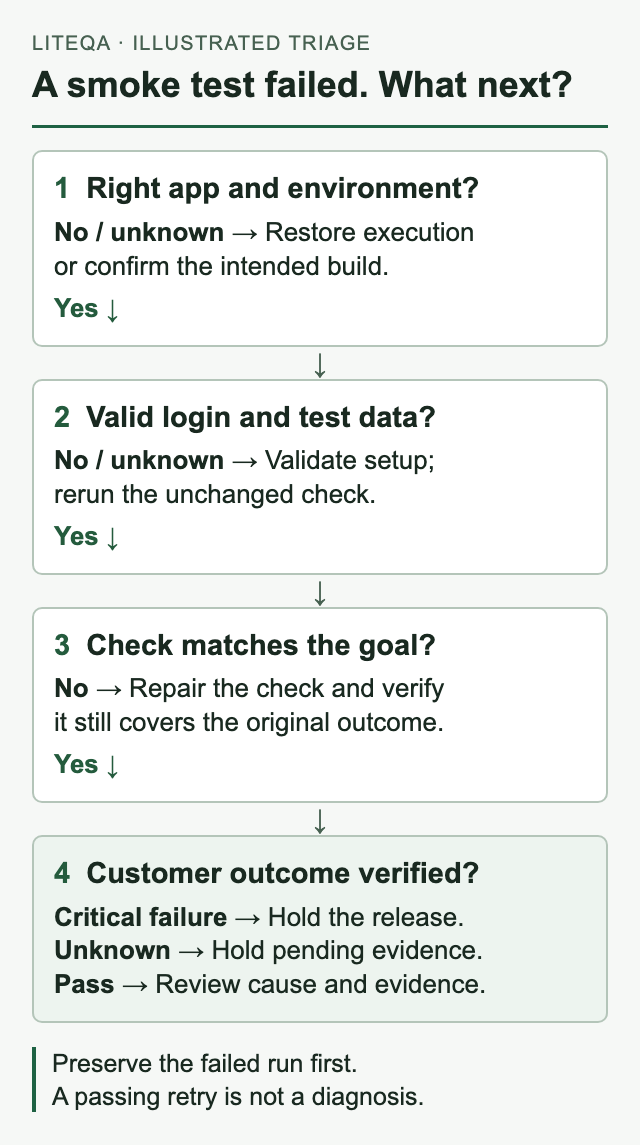
1. Did the check reach the intended application?
Confirm the start URL, final URL, environment and deployed build. Compare the failing run with the last relevant pass: browser/version, viewport, feature flags, account role and test revision.
A check pointed at the wrong staging host tells you little about the release candidate. A runner that could not launch a browser provides no browser proof. Restore the intended environment and rerun; the missing release evidence remains missing until then.
2. Was the required starting state valid?
Check whether login was fresh or reused, whether the account was still active, and whether its permissions matched the journey. Playwright documents both the need to replace expired saved authentication state and the risk of tests interfering through a shared account. Tests that modify shared server-side state may need separate accounts. See authentication and account isolation.
In the demo example, use a fresh sandbox request and avoid an account another test is modifying. Do not blindly resubmit a real request: a missing confirmation could follow a successful operation and create a duplicate.
3. Does the check still express the intended behavior?
Inspect the saved revision that actually ran, rather than the newest editor view. Was the button renamed? Did the journey gain a required field? Does the check select the intended form? Was its confirmation text deliberately changed?
If the application meets the agreed outcome and the check targets an obsolete label, update the target while preserving the outcome assertion. If the changed UI prevents a customer from completing the journey, it may be an application issue even though the error mentions a locator.
For timing problems, wait for the relevant state instead of guessing a longer sleep. Playwright's auto-retrying assertions repeatedly evaluate supported conditions until they succeed or time out. Choose a timeout consistent with your acceptable user experience; widening it can hide a real latency problem.
4. Can you reproduce the missing outcome under valid conditions?
Run the unchanged check on the candidate build with known starting state, or perform a controlled manual check using the same role and journey. A manual pass is useful evidence, but it may differ in browser state or timing from the failed automation.
If the intended customer outcome fails with valid setup, hold the release while you investigate. If it succeeds and a specific check defect is established, repair the check and verify that it still exercises the original outcome.
Make an explicit release decision
Use these dispositions as a small-team policy, adapting them to the journey's importance:
| Evidence | Release disposition | Next action |
|---|---|---|
| Critical customer outcome fails under valid conditions | Hold | Fix the app and verify the outcome on the corrected build |
| Stale login or test data is established | Restore setup before deciding | Rerun the unchanged check with valid state |
| Check defect is established; equivalent outcome is demonstrated | Review repaired coverage | Record the revision change and rerun |
| Runner/environment failed before meaningful coverage | Gate remains unresolved | Restore execution or obtain equivalent evidence |
| Cause remains unknown on a critical journey | Hold pending evidence | Assign one diagnostic comparison and an owner |
If you accept unresolved risk, record who made that decision, which users or capability it could affect, and what would trigger rollback. “Probably flaky” is not an explanation.
Why a retry or regenerated check is not a fix
Playwright Test calls a test that fails initially and passes on retry “flaky”; it distinguishes that from passing on the first attempt. This is a result classification, not a root-cause diagnosis. See Playwright's retry categories.
A retry may pass because timing, session state or a dependency changed. Keep both attempts and record the differences. A recovered run establishes success for that attempt; it does not show what fixed the original failure.
Regenerating a check changes the measuring instrument. The new version might follow another path or assert a weaker result. Compare actions, starting state and assertions before treating its pass as equivalent coverage.
With LiteQA browser checks, review the definition and evidence attached to the particular run. For runs using saved-step replay, inspect that saved step revision; for AI-driven runs, inspect the recorded actions and outcome evidence. A newly generated path or a later pass does not establish that the original defect was fixed. The same reasoning applies when you manually rewrite a Playwright test.
Copyable failure report
Use this privately with reviewed evidence links. Mark missing information as unknown.
Journey / release importance:
Expected customer outcome:
Actual observed outcome:
First failed step / last evidenced success:
Blocked or untested outcomes:

Environment / app build / start and final URL:
Check revision / browser and version / viewport:
Account role / fresh or reused login / test data state:
Run time with timezone / run identifier:
Screenshot / trace links and which attempt they describe:
Relevant observed response or error (sanitized):

Possible causes (not yet established):
Diagnostic comparison / single condition changed:
Result / remaining uncertainty:
Release decision / owner / next action:
Evidence needed to close:
Before you unblock the release
- Preserve the failure and identify its exact check revision and app build.
- Separate expected outcome, observed failure and possible causes.
- Confirm the intended environment, account role, login and test data.
- Run one controlled comparison; retain retry and original evidence.
- Review any check change for lost actions or weaker assertions.
- Verify the relevant outcome on the release candidate and record the decision.
Close the investigation when the evidence answers the original customer question. For the demo-request check, that means demonstrating the agreed acknowledgement with valid setup—and keeping untested delivery or storage outcomes explicit.